By Remi Bennett · Humanoid robot data · · 6 min read
MCAP vs LeRobot: What to Keep for Robot Training
Use MCAP to keep timestamped recordings that you need to inspect or reprocess. Use a LeRobot dataset to load episodes into a robot-learning pipeline. If your system records MCAP and exports LeRobot, keep both when storage costs and retention rules allow. The source recording lets you make a new export when calibration, labels or training needs change.
The distinction is about purpose, not data quality. MCAP can contain processed data, and LeRobot can record demonstrations directly. Neither format proves that an episode is complete or correctly labelled.
Lightwheel's EgoSuite documentation shows how the two fit together. It describes MCAP for inspecting recorded streams and LeRobot for loading training data. Comparing those schemas reveals what a team needs to check before relying on the export.
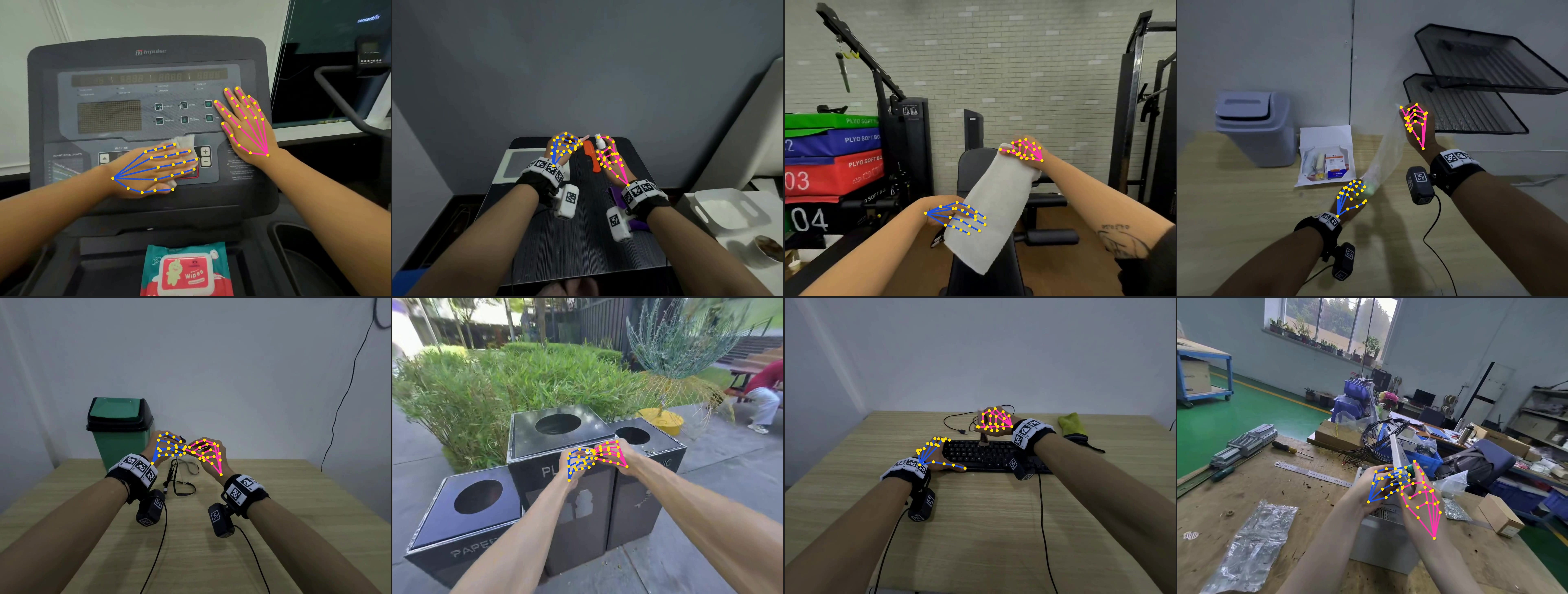
Hand-pose overlays on first-person camera images. Source: Lightwheel EgoSuite documentation.
MCAP stores messages, LeRobot organises episodes
The MCAP specification defines records for schemas, channels, messages, attachments and metadata. A channel identifies a topic and its message encoding. Each message has a log time and a publish time. This allows camera payloads, pose messages and calibration data to share one file without being flattened into a table.
MCAP also supports chunk compression and optional indexes for faster reads. Those features help with storage and inspection. They cannot correct a bad transform or align clocks that were wrong during capture.
LeRobot v3 is designed around training samples. It stores state, action and timestamp fields in Parquet, and camera streams in MP4. Metadata describes features, tasks, statistics and episode offsets. The loader returns frames or time windows as dictionaries of PyTorch tensors.
In v3, multiple episodes can share larger Parquet and video files. Metadata records where each episode starts and ends. Keep that metadata with the data and videos. Filenames alone are not enough to reconstruct the episodes.
The choice follows the task. Inspecting a sensor topic is different from loading a batch of aligned training frames. A team may need both formats, or record directly in LeRobot when no separate MCAP capture stage is needed.
What EgoSuite keeps in each format
EgoSuite's MCAP topic list includes head and hand poses, camera video, calibration, session metadata and task segments. Wrist video, depth, audio and bad-frame annotations are optional. Their presence depends on the recording setup.
Its LeRobot export schema describes poses for each frame, video files, and task and subtask metadata. The documented layout packages each episode as a separate v3-style dataset. Although the general v3 format supports shared files, not every producer uses that layout.
These fields show how the two representations differ:
| Information | EgoSuite MCAP | EgoSuite LeRobot export |
|---|---|---|
| Head video | Camera topics such as /sensor/camera/head_left/video | MP4 files grouped by camera |
| Hand pose | Separate left and right pose topics | Hand position and rotation columns in world coordinates |
| Calibration | Camera intrinsic and extrinsic topics | Intrinsics in episode metadata and camera poses in frame data |
| Task segments | Semantic-segment messages | Task and subtask indexes, plus an optional original annotation file |
This comparison reflects the published schemas. It does not establish which optional fields appear in every release.
The export schema sets robot_type to null because the recordings show human activity. Its frame fields describe human poses, not robot commands. A familiar loader does not make those poses directly executable. The target robot's action space, body proportions, controller and contact behaviour still matter.
When assessing EgoSuite-Open100K, check what the chosen package supports. Visual pretraining, motion understanding and policy training may need different fields and labels. Inspect the feature schema and a matched sample episode before choosing a package.
Record what conversion changes
A converter may resample streams, encode video, rename fields, choose episode boundaries or drop data. These choices depend on the tool. Information loss is possible, but it is not required by every MCAP-to-LeRobot conversion.
NVIDIA's GR00T data-export workflow provides one example. Its mcap-to-lerobot command accepts recording directories, a task description, a target frame rate and a robot type. The checks include output directories, episode counts, and whether metadata fps matches the recorder's sync_rate.
That tool is not a universal converter for every MCAP schema. Human hand poses need a different mapping from recorded robot joint commands.
Keep a conversion manifest with the source and export. It should record:
- Source files, checksums and converter version.
- Topic-to-feature mappings, sampling rules, coordinate frames and units.
- Excluded fields, redactions and label changes.
These are recommended checks, not fields required by MCAP or LeRobot. They make it easier to explain differences or repeat the conversion later.
Check data synchronisation separately. Equal row counts do not prove that an image and an action describe the same instant. A loader can accept data whose camera, state and action streams are misaligned.
Check one episode from recording to export
The MCAP CLI provides file statistics and lists channels and schemas. With the CLI installed and a local recording, start with:
mcap info episode.mcap
mcap list channels episode.mcap
mcap list schemas episode.mcap
Compare the output with the dataset card. Check that the promised topics are present and that timing and message counts make sense. These checks do not establish calibration accuracy or label quality. Lightwheel's development kit also documents tools for reading topics, decoding video and viewing recordings.
Next, load the matching LeRobot episode with the intended loader version. Compare a short sequence of timestamps, video frames, poses and labels across both formats. Check dropped frames and episode boundaries. Use documented tolerances rather than expecting identical bytes after resampling or video encoding.
Include a runnable sample and expected output with the dataset. This helps the next team check its interpretation. A successful import alone does not prove that the data suits the training task. These are proposed checks, not results from a dataset test conducted for this article.
Keep the source when it serves a purpose
Source recordings can support revised calibration, new labels or another training pipeline. Keep them under a clear retention policy. Storage costs, access controls, licences and deletion duties apply to both sources and exports. Sensitive recordings should not be retained indefinitely just because they might be useful.
For a data handoff, request a matched episode, the feature schema and the conversion manifest. Confirm the camera setup, available labels and usage rights. The training-data evaluation guide covers those wider checks. The dataset-format comparison explains other storage options.
If you use the buyer form, name the training stack and say whether you need source recordings. If you are listing a dataset, explain how its exports relate to the source. Keep enough evidence for another team to check the data and reproduce the conversion.